Review before use
Edit detected fields or use manual equipment-detail entry when the OCR result needs correction or the label is incomplete.

HVAC/R AI Pro
Equipment Scanner
Released on iPhone and iPad
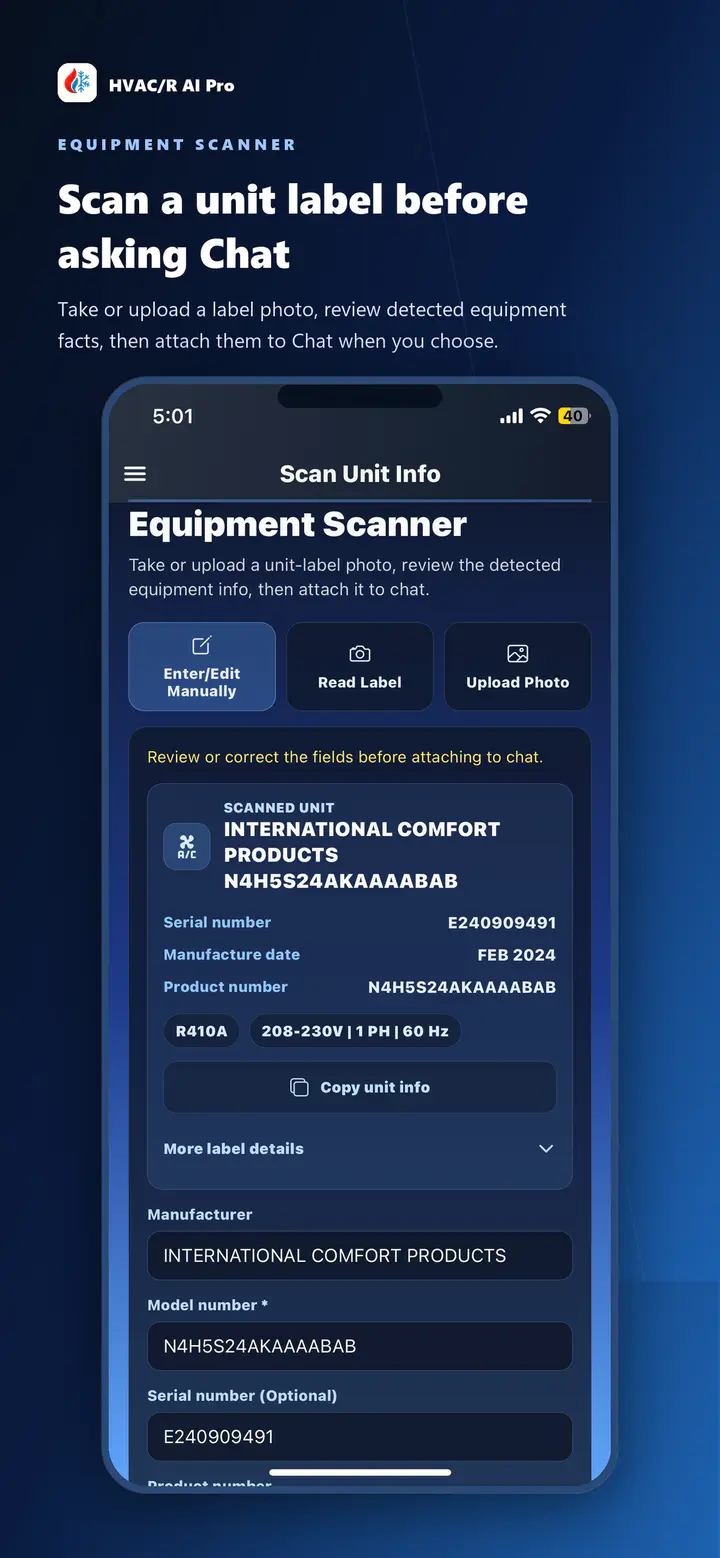
Take a still label photo or choose one from your library. Review, edit, manually complete, or copy the detected equipment details, then decide whether that context belongs in Chat.
On-device text extraction. User-reviewed equipment context.
Four-step workflow
The Scanner prepares equipment context. It does not make the diagnosis or decide whether the information should enter Chat.
Take a still equipment-label photo in the iPhone or iPad app, or choose an existing photo from the device library.
The native Scanner extracts label text on the device and organizes supported details for review. Missing or incorrect text can still occur.
Correct detected fields, enter equipment details manually when needed, and copy a compact equipment summary for your own workflow.
Attach the reviewed equipment context only when it is useful. The scan is not automatically sent to Chat or searched.
Reviewable details
Equipment labels vary. The Scanner can organize supported fields when text is present and detected, but no label is expected to provide every item.
On-device Scanner privacy
Equipment-label text is extracted on the device. Review and edit the result before using it. The Scanner does not automatically send the label photo to Chat; equipment context is attached only when you choose.
Edit detected fields or use manual equipment-detail entry when the OCR result needs correction or the label is incomplete.
Copy the reviewed equipment summary for your own notes or another authorized workflow.
Choose whether to attach reviewed equipment context to Chat. Normal later Chat use remains subject to the normal AI usage policy for your account.
Equipment details, reviewed first